JDK, JRE & JVM
When you first install Java, you run into three confusing acronyms almost immediately: JVM, JRE, and JDK. They are three distinct — but nested — layers of the Java platform, and knowing which is which saves you a lot of confusion when setting up environments, writing build scripts, or explaining Java to a colleague.
Here is the short version before diving in:
| Term | Full Name | What it does |
|---|---|---|
| JVM | Java Virtual Machine | Executes compiled Java bytecode |
| JRE | Java Runtime Environment | JVM + standard libraries needed to run Java apps |
| JDK | Java Development Kit | JRE + compiler, debugger, and tools needed to build Java apps |
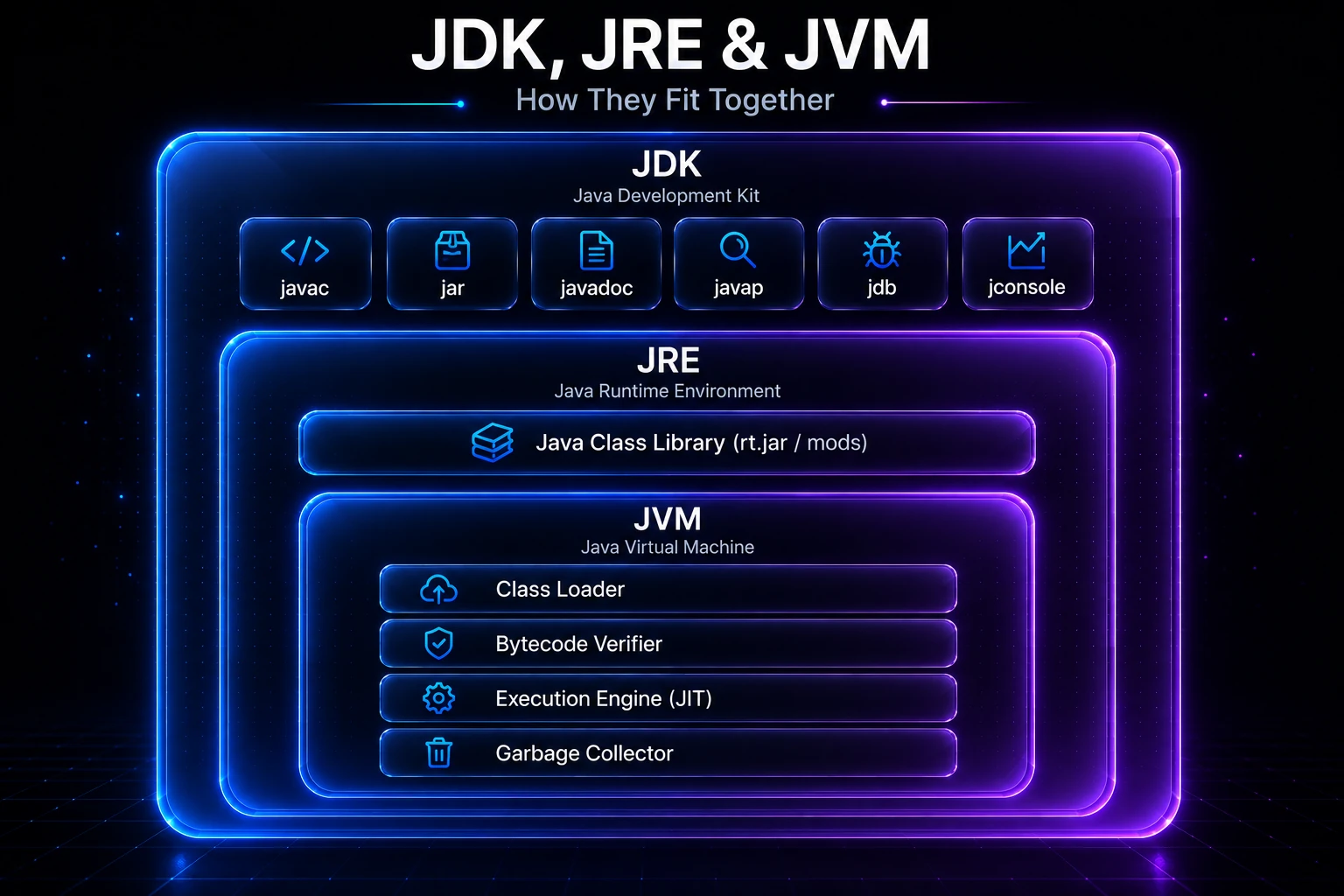
They nest like Russian dolls: JDK ⊇ JRE ⊇ JVM.
Note: Starting with Java 11, Oracle no longer ships a standalone JRE download. In practice you install the JDK everywhere — on development machines and servers alike. The JRE/JDK distinction still matters conceptually and in embedded/IoT contexts.
The JVM — Java Virtual Machine
The JVM is the core engine of the Java platform. It is a software-based computer that reads Java bytecode (stored in .class files) and executes it on whatever hardware and operating system it is running on. This is how Java achieves its write once, run anywhere promise — the same .class file runs on Windows, macOS, Linux, and ARM processors without recompilation.
When you run a Java program, the JVM is responsible for:
- Loading — reading
.classfiles from disk via the Class Loader subsystem. - Verification — checking that the bytecode is valid and safe before execution.
- Execution — interpreting bytecode and, for hot code paths, compiling them to native machine code via the JIT compiler.
- Memory management — allocating objects on the heap and reclaiming them automatically through Garbage Collection.
The JVM is not tied to Java alone. Languages like Kotlin, Scala, Groovy, and Clojure all compile to JVM bytecode and run on it.
// After javac compiles HelloWorld.java → HelloWorld.class,
// the JVM loads and executes it:
//   java HelloWorld
//
// Internally the JVM calls this entry point:
public class HelloWorld {
    public static void main(String[] args) {
        System.out.println("Hello from the JVM!");
    }
}
Output:
Hello from the JVM!The JRE — Java Runtime Environment
The JRE bundles together everything a machine needs to run Java applications — but nothing more. It contains:
- The JVM (the execution engine described above)
- The Java Class Library — the full standard library (
java.lang,java.util,java.io,java.net, and hundreds of other packages) - Supporting configuration files and resource files
If someone just needs to run your compiled JAR on a server, the JRE (or nowadays a full JDK) is what they install. They do not need javac or the other developer tools.
// The JRE provides all the standard library classes your code uses at runtime,
// for example java.util.ArrayList and java.lang.String:
import java.util.ArrayList;

public class JreDemo {
    public static void main(String[] args) {
        ArrayList<String> list = new ArrayList<>();
        list.add("Java");
        list.add("is");
        list.add("portable");
        System.out.println(String.join(" ", list));
    }
}
Output:
Java is portableTip: The standard library bundled in the JRE is enormous. You rarely need to import anything from third-party libraries just to do string manipulation, file I/O, date/time handling, or basic networking — it is all there out of the box.
The JDK — Java Development Kit
The JDK is what you install as a developer. It includes everything in the JRE plus the tools you need to write and build Java programs:
| Tool | Command | Purpose |
|---|---|---|
| Java Compiler | javac | Compiles .java source files to .class bytecode |
| Java Launcher | java | Starts the JVM and runs a program |
| Archiver | jar | Packages .class files into a .jar archive |
| Documentation Generator | javadoc | Generates HTML API docs from source comments |
| Disassembler | javap | Inspects .class files (see javap Tool) |
| Debugger | jdb | Command-line debugger |
| Monitoring Tools | jconsole, jstack, jmap | Profile and inspect running JVMs |
// Compile with the JDK's javac:
//   javac Greeting.java
//
// Then run with the JVM:
//   java Greeting
public class Greeting {
    public static void main(String[] args) {
        String name = "Developer";
        System.out.printf("Welcome, %s! The JDK compiled this.%n", name);
    }
}
Output:
Welcome, Developer! The JDK compiled this.The javac step is what turns your human-readable source into platform-neutral bytecode. That bytecode is then handed to the JVM for execution. For a deeper look at each step, see How a Java Program Runs.
How They Fit Together
A diagram is worth a thousand words here:
┌──────────────────────────────────────────────┐
│                    JDK                       │
│  javac  jar  javadoc  javap  jdb  jconsole   │
│  ┌────────────────────────────────────────┐  │
│  │                 JRE                   │  │
│  │   Java Class Library (rt.jar / mods)  │  │
│  │   ┌──────────────────────────────┐    │  │
│  │   │           JVM                │    │  │
│  │   │  Class Loader                │    │  │
│  │   │  Bytecode Verifier           │    │  │
│  │   │  Execution Engine (JIT)      │    │  │
│  │   │  Garbage Collector           │    │  │
│  │   └──────────────────────────────┘    │  │
│  └────────────────────────────────────────┘  │
└──────────────────────────────────────────────┘
Your workflow follows a simple path through these layers every time you work on a Java project:
- You write
.javasource files and use JDK tools (javac,jar) to compile and package them. - At runtime, the JRE’s class library provides the standard APIs your code calls (
ArrayList,String,System.out, etc.). - The JVM underneath it all loads your bytecode, verifies it, JIT-compiles hot paths, manages heap memory, and handles threads.
Under the Hood
JVM Implementations
The JVM is a specification, not a single piece of software. Any implementation that passes the Java Compatibility Kit (JCK) tests is a valid JVM. Common ones include:
- HotSpot (OpenJDK / Oracle) — the most widely used, ships with every standard JDK.
- GraalVM — adds a polyglot runtime and an Ahead-of-Time (AOT) compiler that produces standalone native executables via
native-image. - OpenJ9 (Eclipse) — originally IBM’s JVM, optimized for cloud deployments with a smaller memory footprint.
- Azul Zing / Zulu — commercially supported distributions with low-latency GC options.
JVM Bytecode
When javac compiles your source, it produces bytecode — a set of roughly 200 instructions designed for a stack-based virtual machine, not your actual CPU. You can inspect these instructions yourself with javap -c:
// javap -c HelloWorld.class (abridged output):
public static void main(java.lang.String[]);
  Code:
     0: getstatic     #7  // Field java/lang/System.out
     3: ldc           #13 // String "Hello from the JVM!"
     5: invokevirtual #15 // Method java/io/PrintStream.println
     8: return
The JIT compiler watches which bytecode sequences are executed frequently (“hot spots”) and translates them to optimized native machine code on the fly — this is why a Java server application typically gets faster after it has been running for a few seconds as the JIT warms up.
JAVA_HOME and the PATH
When you install a JDK, you typically set two environment variables:
JAVA_HOME— points to the JDK root directory (e.g.,/usr/lib/jvm/java-21-openjdk).PATH— includes$JAVA_HOME/binso your terminal can findjava,javac, and the other tools.
Build tools like Maven and Gradle use JAVA_HOME to locate the JDK automatically. Step-by-step instructions are in Setting the PATH.
Which JDK Should You Install?
For most projects, grab the latest Java 21 LTS (Long-Term Support) build from Adoptium Temurin — it is free, open-source, and receives security patches until 2029.
# Verify your installation after setup:
java -version
javac -version
Output (example):
openjdk version "21.0.3" 2024-04-16
OpenJDK Runtime Environment Temurin-21.0.3+9 (build 21.0.3+9)
OpenJDK 64-Bit Server VM Temurin-21.0.3+9 (build 21.0.3+9, mixed mode)

javac 21.0.3
If java -version works but javac -version gives “command not found”, you have a JRE-only installation — download the full JDK instead.
Warning: Never rely on a system-wide JRE for development. Without
javacand the other JDK tools, you cannot compile, package, or debug your own code.
Quick Reference
| Question | Answer |
|---|---|
I just want to run a .jar file | Install the JDK (or a JRE if one is available) |
| I want to write and compile Java code | Install the JDK |
| What executes my bytecode at runtime? | The JVM |
What provides java.util.ArrayList? | The JRE class library |
What provides javac? | The JDK |
| Is the JVM the same on all platforms? | No — there is a platform-specific JVM for Windows, macOS, Linux, etc. — but they all run the same bytecode |
Related Topics
- JVM Architecture — A deeper look at the class loader subsystem, runtime data areas, and the execution engine inside the JVM.
- How a Java Program Runs — Follow a
.javafile step by step through compilation, class loading, and execution. - JIT Compilation & Bytecode — How HotSpot profiles your code and converts hot bytecode to optimized native machine code.
- Garbage Collection Deep-Dive — How the JVM automatically manages heap memory and which collector to choose.
- Setting the PATH — Configure
JAVA_HOMEandPATHon Windows, macOS, and Linux so all JDK tools are accessible. - Class Loaders & Class Loading — How the JVM’s bootstrap, platform, and application class loaders find and load
.classfiles at runtime.